

Passkeys and backup access
Add a second passkey, test it, and remove a lost credential without leaving earlier funds exposed.
What your passkey opens#
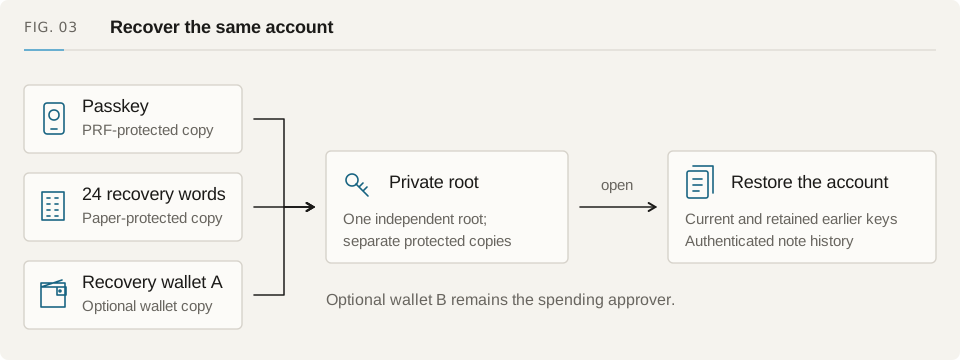
A Fuyu passkey decrypts the seed of your private account. Every added passkey opens that same account, address, balance and retained earlier keys. To unlock it, the browser asks you to verify yourself and uses the WebAuthn PRF extension to derive a decryption key.
The passkey belongs to the website where you registered it and the provider that stores it. A credential created on one host may not open the account on another. Keep the account's 24 Fuyu recovery words separately and test that backup before you rely on it. Choosing a phone or security key in the browser tells it your preference; it does not certify that device's compatibility.
Add a backup passkey#
Open Account settings → Passkeys after unlocking a published account. Save the backup on a different device or with another passkey manager when you can. That way, losing your everyday device need not lock you out.
- Choose a phone or tablet, security key, or this device and its passkey manager. Give it a name you will recognize.
- Confirm an existing passkey. If you opened with paper recovery, enter the account's recovery words. Fuyu checks the account and earlier keys.
- Create the credential, then verify yourself again with that new passkey. Wait for Fuyu to confirm it opens the same keys.
- Review the passkey name and the wallet saving the update. Save with the required wallet or Safe approval, then check the saved list.
Save the account update#
Creating a credential in your passkey manager is the first step. It starts working with the account after you save the encrypted account update. If you discard a checked draft, the manager may still show its credential. Delete that unused entry in the manager yourself.
If the wallet declines before broadcast, you can keep the checked draft and try saving it again, or discard it. If submission is uncertain, check that update before sending anything else. Another device may have changed the account in the meantime; reopen its latest record before adding access. A Safe-owned record needs its owner approvals, and configured wallet B still has to approve.
| State | What to do |
|---|---|
| Verified, unsaved | Save the checked draft or discard it |
| Safe approval pending | Continue collecting approvals for this update |
| Submission uncertain | Check the existing update before another write |
| Recovered with wallet A | Set a replacement passkey, then add a spare |
| Saved | Test it; no transaction is needed |
Test a passkey and give it a name#
Choose Test a passkey and select a saved credential in the browser. Fuyu checks that it opens this account and every retained earlier key. The test sends no transaction and keeps your account open. Selecting the wrong credential fails the test without switching accounts.
Names in the Fuyu list are saved in this browser. The chosen name also appears in the provider's registration prompt, but it is never published onchain. Another browser may show neutral names. The encrypted wraps determine access, not the labels. An account can hold at most 16 wraps; a long key history can lower that limit because the full profile must fit within 2,048 bytes.
Remove a passkey and protect earlier funds#
Removal changes the private key and receiving address. Check each remaining passkey, write the new 24 recovery words and complete the word checks. Then save the removal with the account's required approvals. The new words also recover earlier keys, so replace your paper copy before continuing.
Update wallet-address receiving if it points to the old key, replace old receive links and portals, and choose Protect earlier funds. This privately moves available notes to the new key. A Safe must approve those moves at its owner threshold. Waiting settlements, unreadable history or earlier funds that have not moved keep the task unfinished. Fuyu keeps the last passkey; add another before removing it.
If a passkey does not work#
If the browser or authenticator lacks PRF support, try another compatible combination or use paper recovery. Some authenticators return PRF only when you sign in, so a second prompt immediately after creation is normal. If you chose a credential for another account, cancel and select the saved one you intended.
Keep browser data if local storage or the saved removal record cannot be read. Resolve that problem before making another access change. After a reload, open with a remaining passkey or the new words and resume Protect earlier funds. A payment arriving at an old key can reopen that task after an earlier check finished.